Give your AI assistant a phone number
Run one command and your Hermes or OpenClaw assistant gets its own phone number, answers calls, and only takes them from people you allow.
What you'll build
Your personal assistant (Hermes or OpenClaw) running on your computer gets a real phone number. When someone you approved calls it, the assistant answers. It can also use VoiceLayer tools such as calling, texting and email.
Nothing on your machine is exposed to the internet. A small background connector dials out to VoiceLayer, so there is no port to open and no tunnel to run.
Prerequisites
- Node.js 22 or newer.
- Hermes 0.22 or newer, or OpenClaw 2026.10 or newer, already installed and working.
- macOS, Linux or Windows. On Windows, run it inside WSL with systemd on, or add
--dockerto run the connector in a container. - A VoiceLayer account. The command opens a browser and lets you sign up if you do not have one.
Connect
Run the command
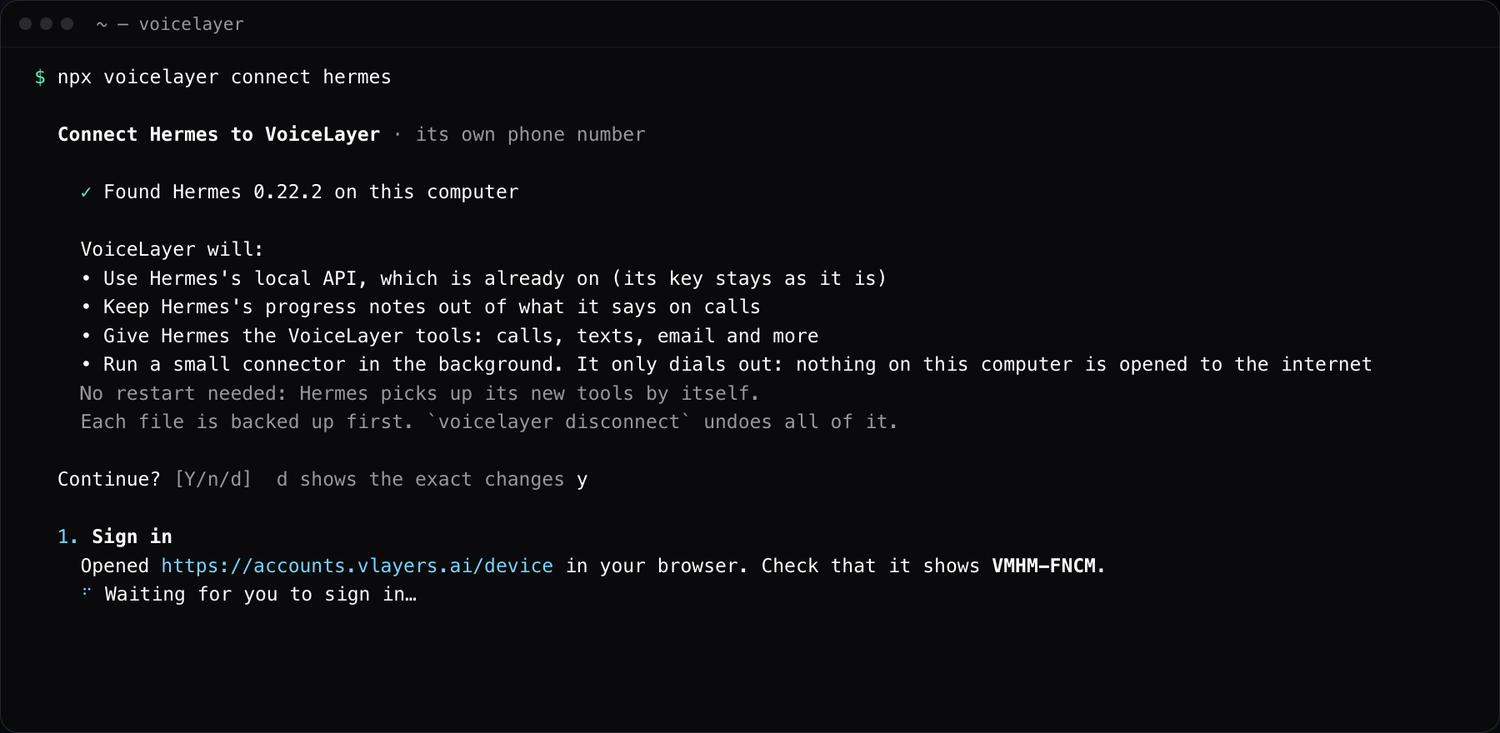
npx voicelayer connect hermesFor OpenClaw, use openclaw instead of hermes. Before it changes anything, the command prints the exact list of changes it will make and waits for you. It backs up every file it edits, and d shows the details.
Sign in
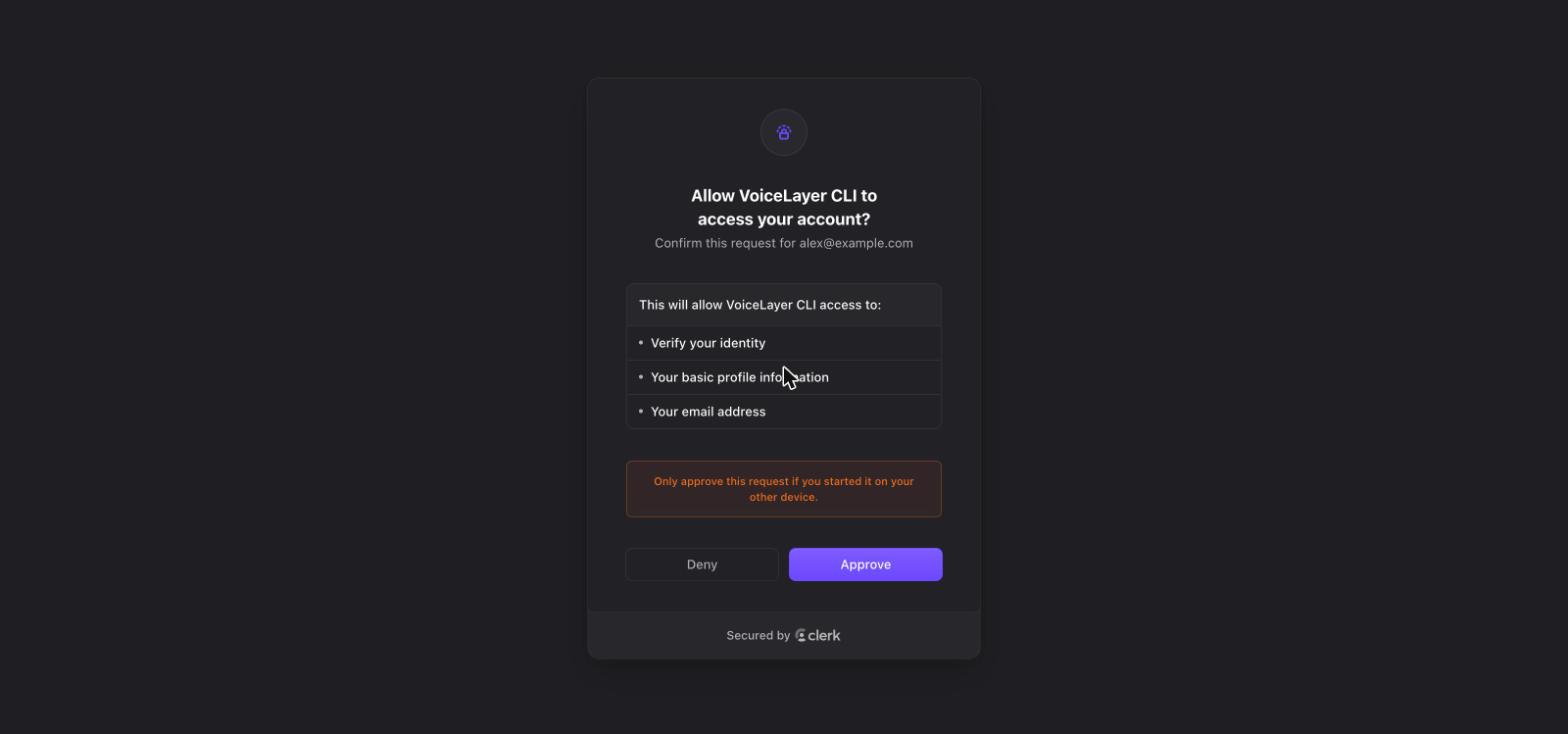
Your browser opens to a sign-in page showing a short code. Check that it matches the code in your terminal, then sign in or create an account.
Choose a number and approve
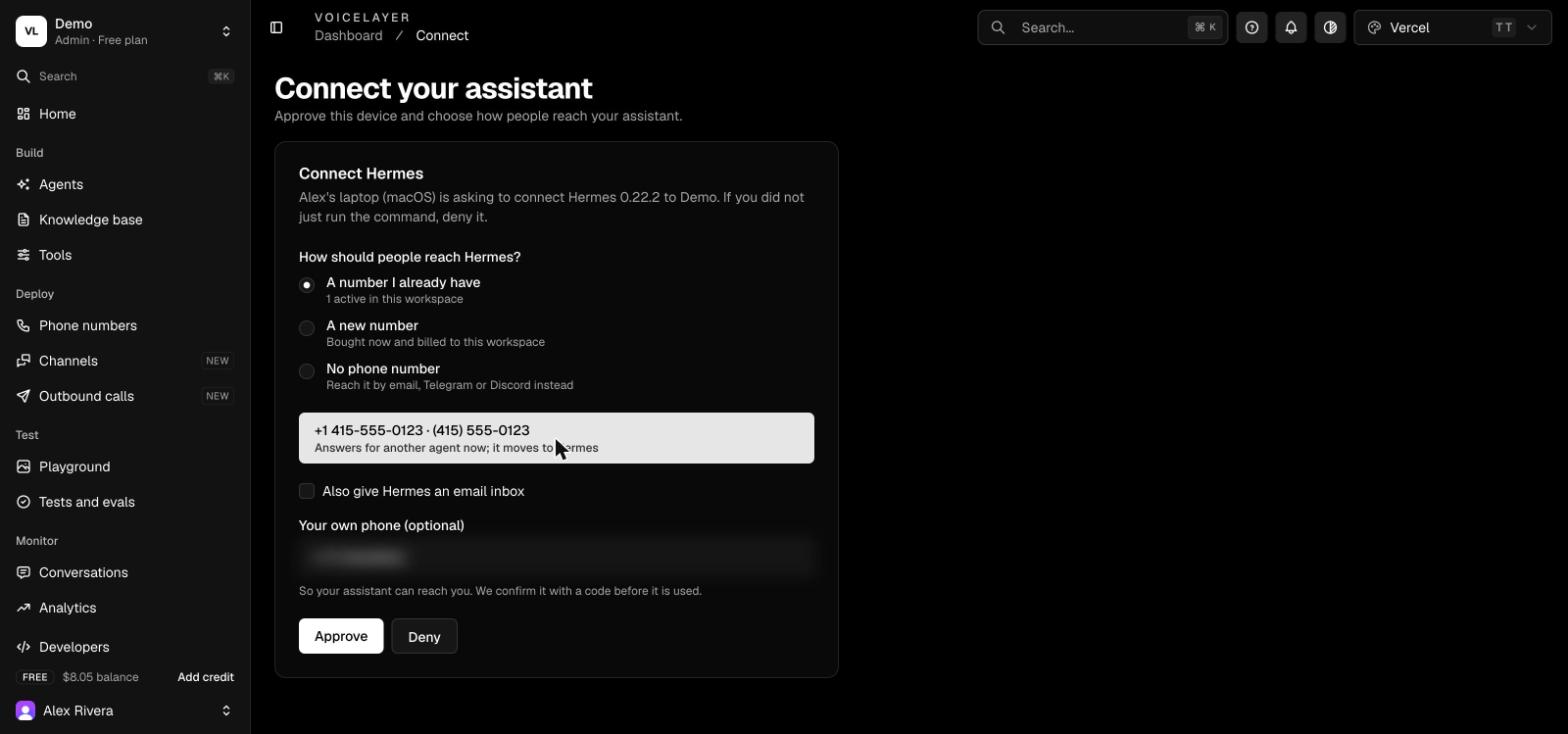
The approval page asks which number the assistant should use: one you already have, a new one, or none. You can also add your own phone number so the assistant knows who you are, and an email inbox if you want one.
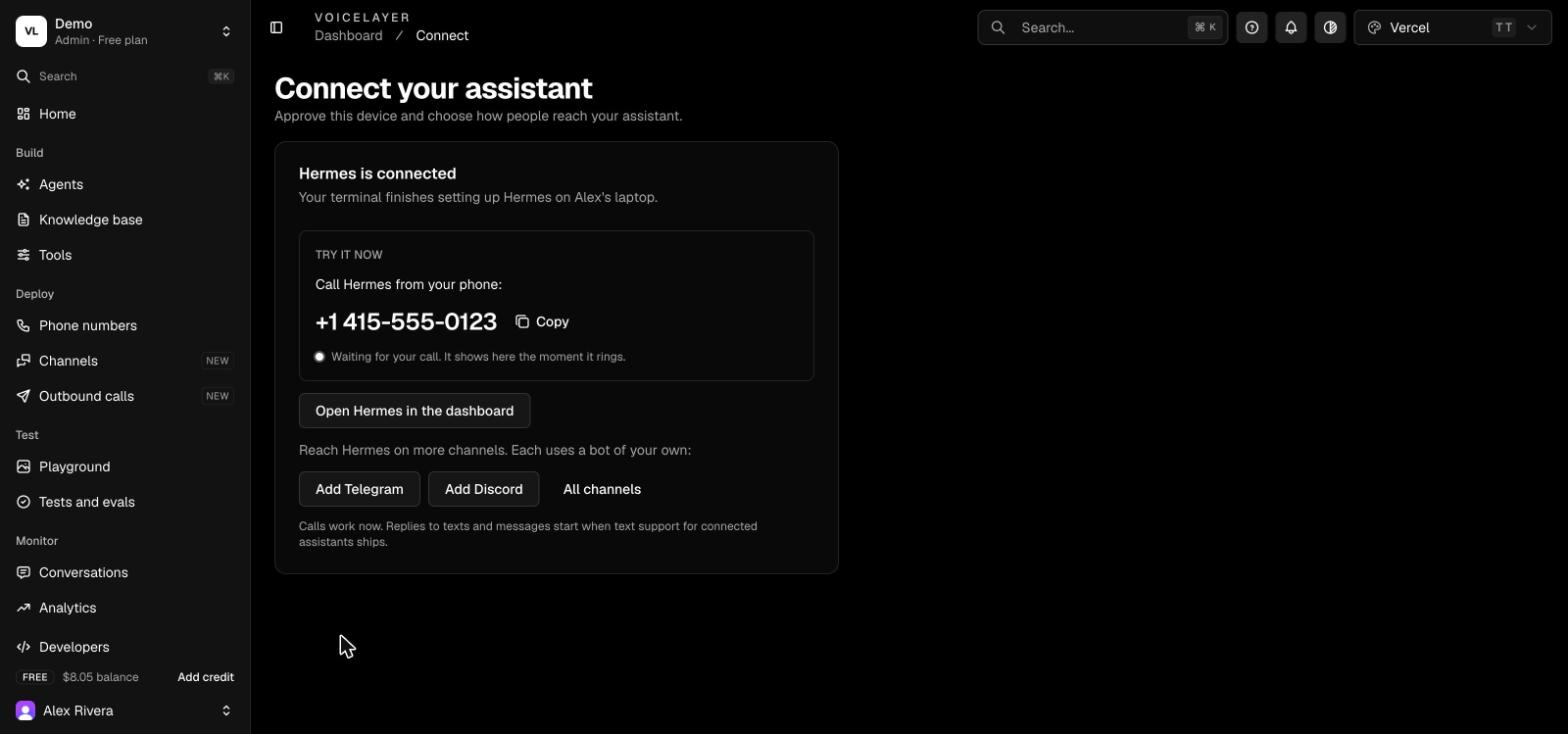
When you approve, the page confirms the device is connected.
Read the result
The terminal finishes the setup, then prints a card with the phone number, the email address if you added one, who can reach the assistant, and the tools it can use.
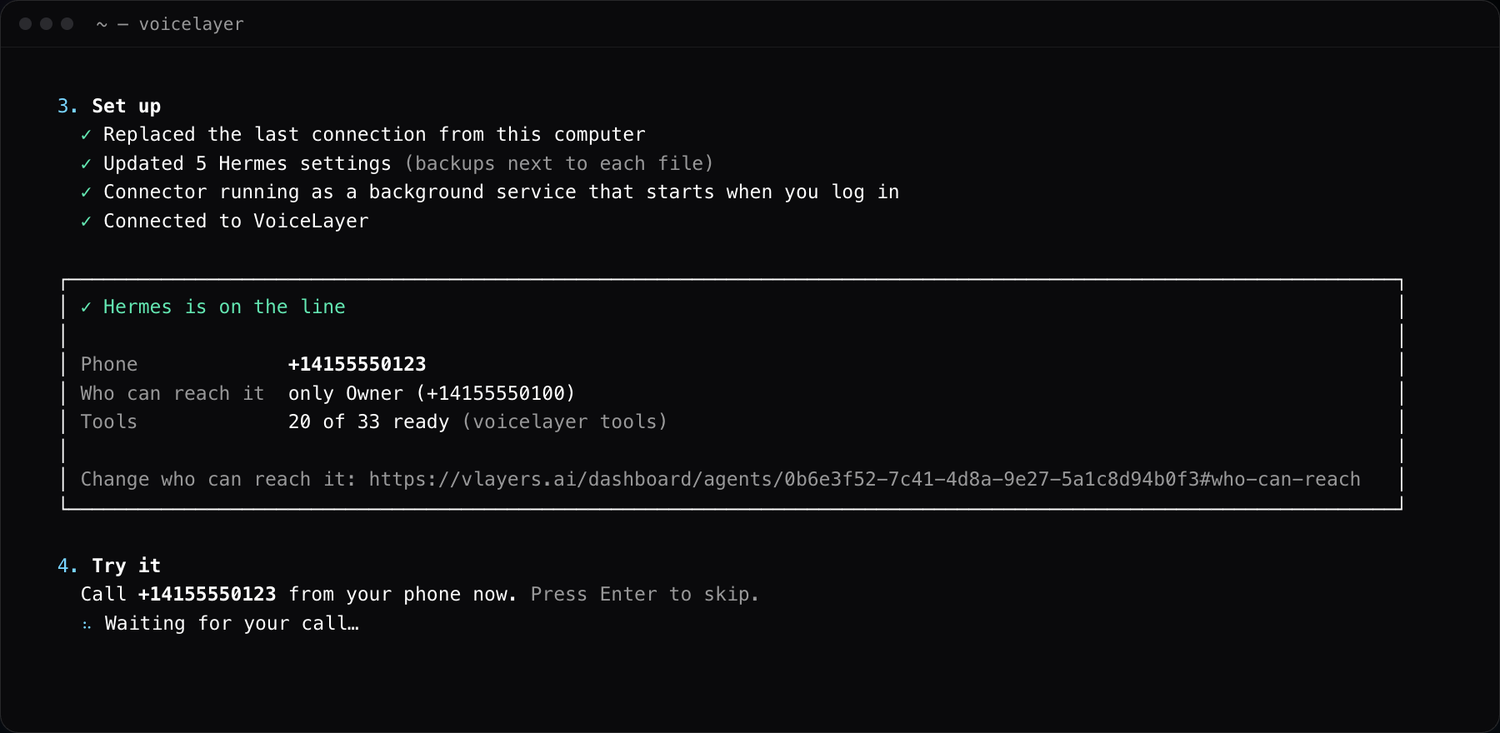
Call it
Call the number from the phone you added. The terminal shows the call as it starts. The conversation, with a transcript, appears in the dashboard.
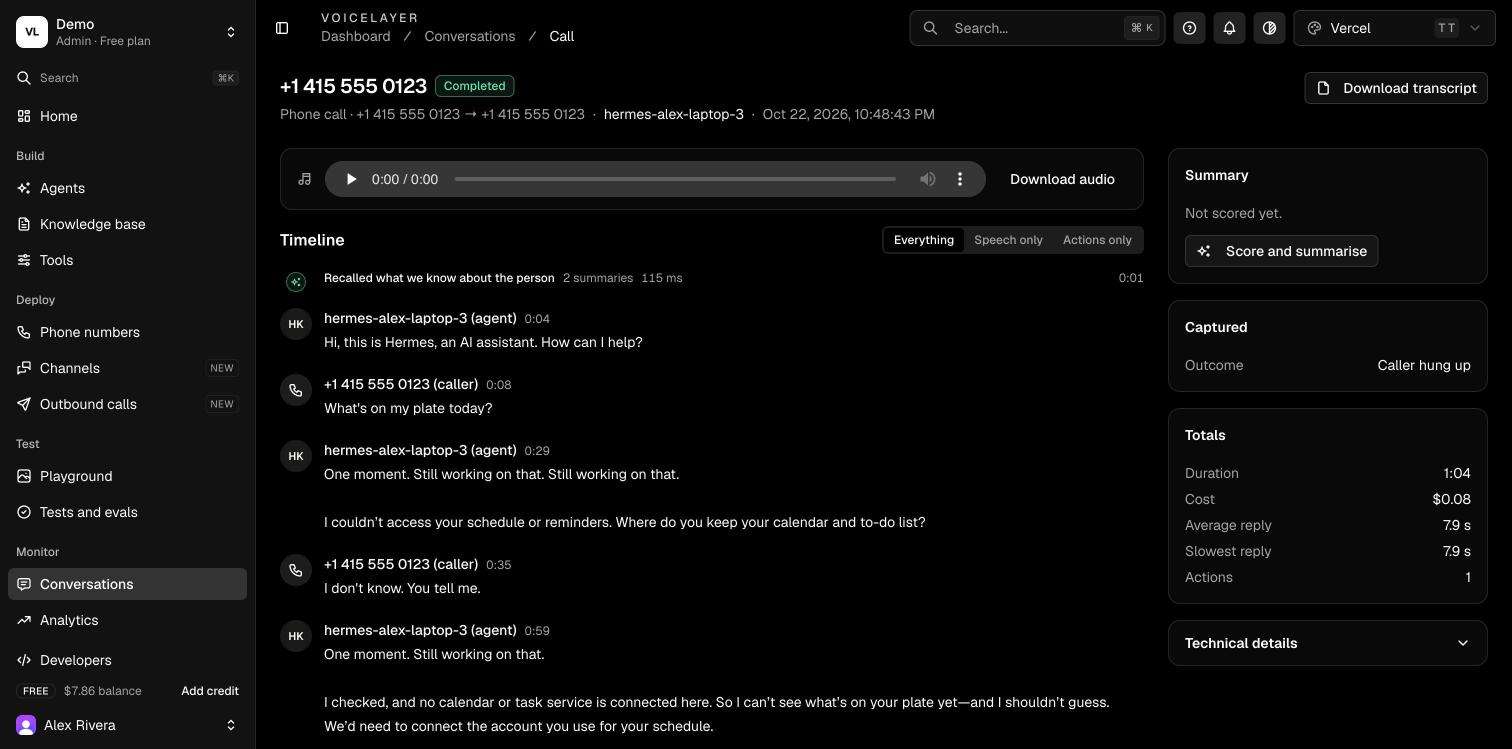
Who can reach it
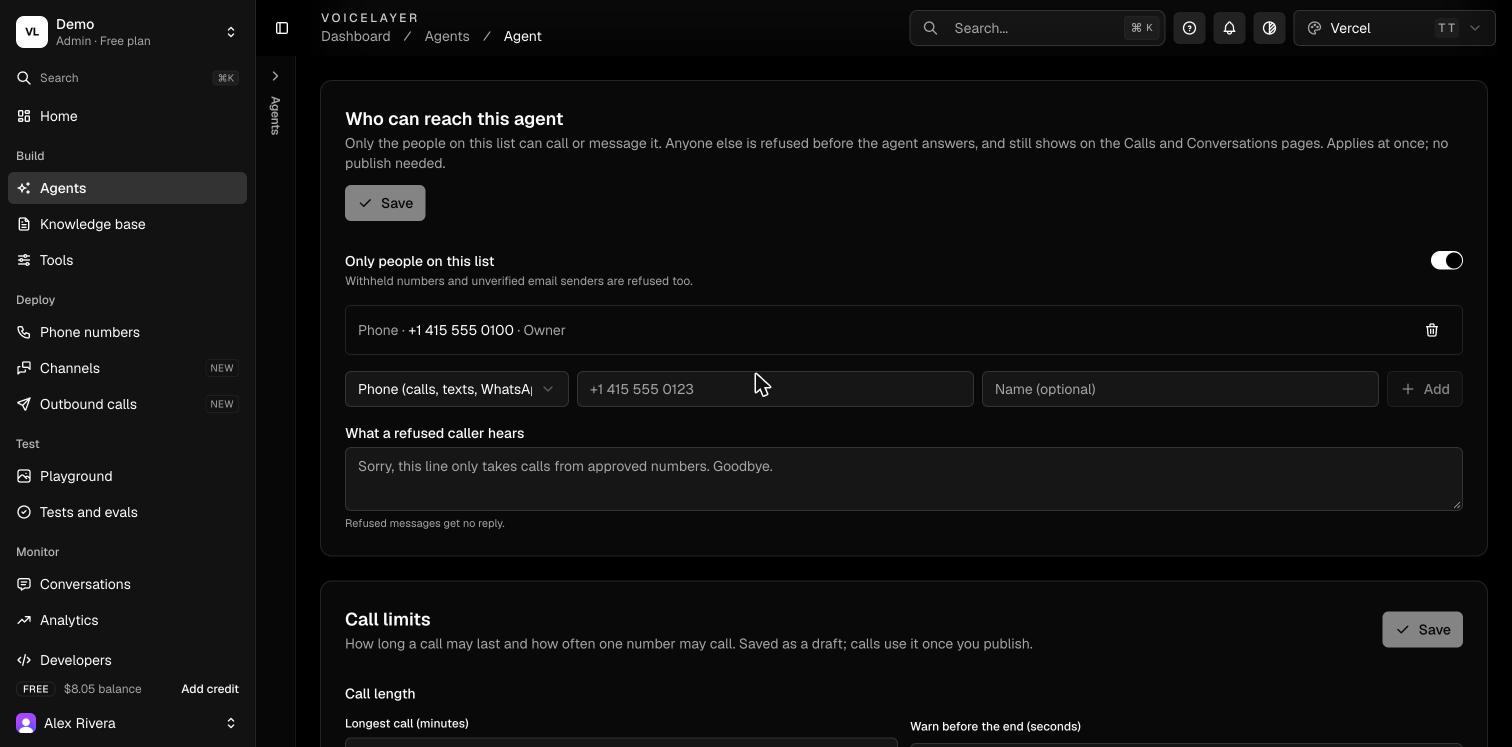
A phone number that anyone can dial is a way into your computer, so a new assistant line starts locked. Only the phone number you gave during approval can reach it, on every channel. Anyone else who calls hears a short message that the line only takes calls from approved numbers, and the attempt shows in Conversations as blocked.
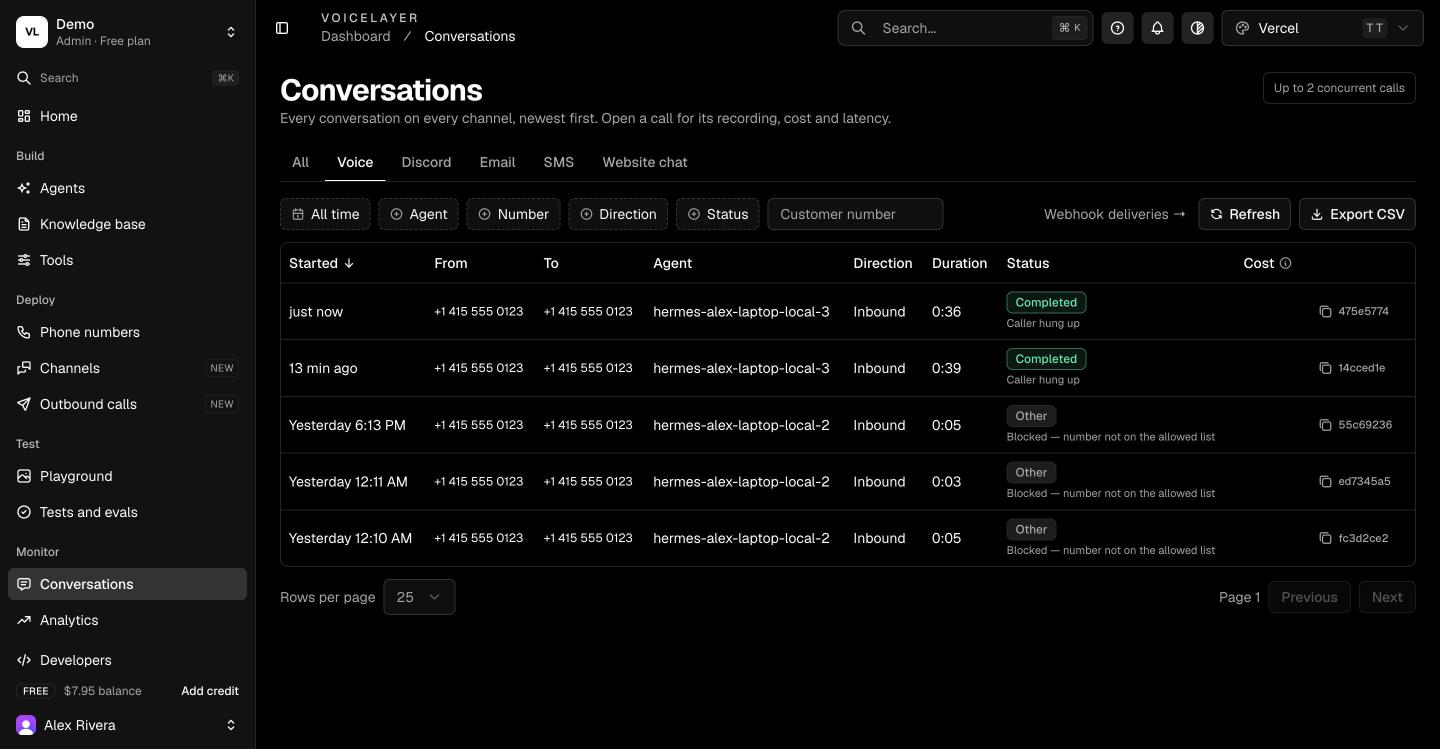
To add people, open the assistant's line in the dashboard and edit the allow list. Opening the line to anyone requires typing confirm, on purpose.
When the assistant is slow
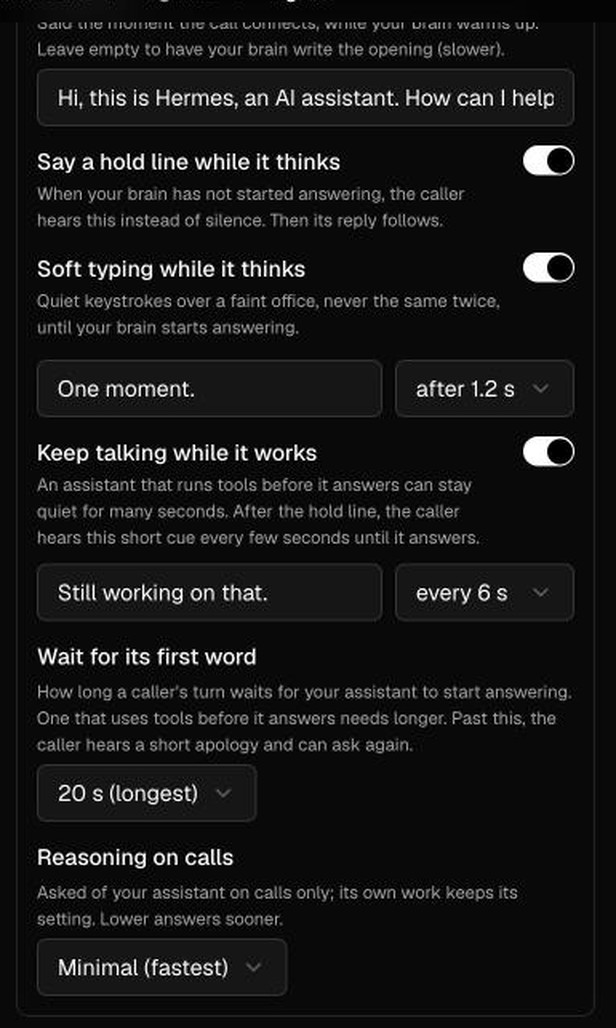
Assistants often take several seconds to start answering, especially when they use tools. New connections wait up to 20 seconds for the first word, say "One moment." after about a second, and then say "Still working on that." every few seconds, so the caller is never left in silence.
You can change this on the assistant's Model and voice settings. Existing assistants keep their old values until you set these and publish the agent.
Check and manage the connection
npx voicelayer status
npx voicelayer tools
npx voicelayer disconnect
status shows whether the connector and your assistant are running. tools lists what the assistant can use. disconnect removes the connector and restores the configuration files from the backups.
Troubleshooting
| Symptom | What to do |
|---|---|
| A caller hears that the line only takes approved numbers | Add their number to the allow list. |
status says the assistant is not reachable | Start Hermes or OpenClaw, then run status again. |
Windows with --docker fails | Start Docker Desktop and run the command again. |
| Windows with WSL fails to start the connector | Turn on systemd in WSL, restart it, and run the command again. |
| The line shows as offline | Run status. If the connector is stopped, run the connect command again. |
| Calls are silent for a long time | Raise the first-word wait and turn on the still-working cue, then publish. |